
Make water feel alive.
From a quiet pond to an expansive lake, Skye PBR Water gives you flexible panels, animated surfaces and optional reflection probes to shape the scene.
Viewer requirement. You need a PBR-capable Second Life viewer to see these materials correctly.
Wave freezing when you look away? The original guide identifies a viewer animation issue fixed in Second Life viewer 7.1.11.12363455226 and Firestorm 7.1.12 beta or later. If affected, update your viewer. Firestorm downloads.
Original product update: Skye PBR Water System V1.02 includes a quarter-circle panel.
1. Rez a panel
Drag any water panel from your inventory onto the ground. Position and resize it with Second Life's Edit tools. Each panel comes with its own controller.
2. Shape your water
Choose a wave type, adjust tint, speed, clarity and reflections. Link multiple panels to one controller when you want them to respond together.
Every detail, under control.
Click the control panel attached to your water. These settings change the appearance and movement of the surface.
Click a wave image to select a texture. Allow a moment for the new texture to download.
Add a subtle overlay, such as a greener tone for pond water.
Adjust wave movement, especially useful when scaling small panels up.
Controls water transparency. In the original controller, maximum clarity is fully opaque.
Changes the surface reflection style and how light or dark it appears.
Suggests a bed beneath the surface; the fourth grey option is neutral.
Rez an optional probe for richer reflections where nearby objects matter.
Choose who can use the controller: Owner, Group or Anyone.
Hide the controller. To reveal it, hold the mouse button at its former location for at least three seconds, then release. Ctrl+Alt+T can help you find it.
Tip: Link multiple water panels to a single controller with SL Edit tools so they share the same settings and animation timing.
Save Land Impact: After setup you can delete the controller and relink one later if needed.
Build a seamless surface.
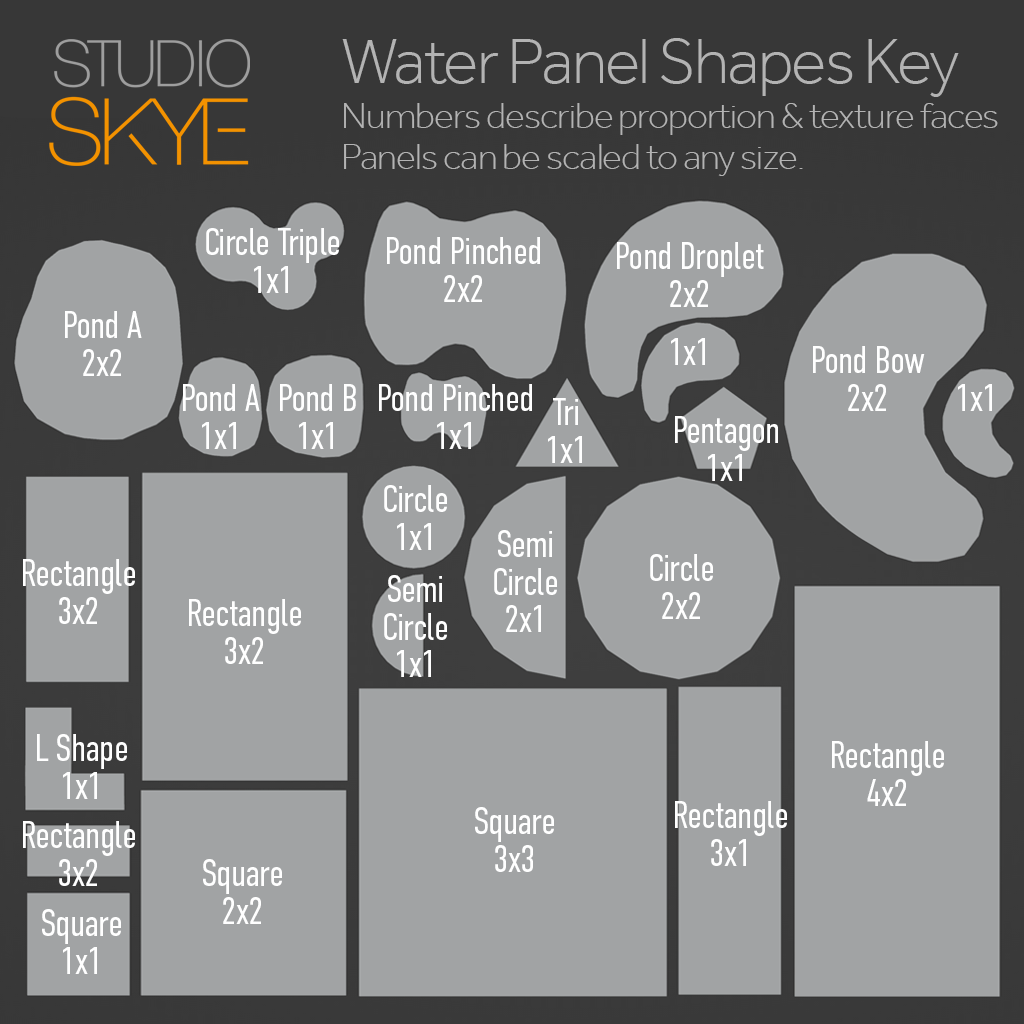
The pack contains multiple panel shapes, including a quarter circle. Panels labelled 1x1 or similar describe texture repeats, not their physical dimensions. You can scale a 1x1 panel much larger for different wave effects.
Combine sizes to form rivers, ponds and lakes. At their original sizes, adjacent panels are designed to meet seamlessly.
Aligning panels with Snap
- Open the Second Life Edit tools and enable SNAP in the General tab.
- Use the arrow beside WORLD and set UNITS to 5.000.
- Move panels with the red and green X/Y handles so they snap into position.
Visible seam between panels? Adjacent animations may have started at different times. Link panels to the same controller to synchronise them.
Bring the shoreline to life.
The pack includes a water sound rock. Place a few around your water and click each one to operate it. Avoid placing too many close together, as overlapping sounds can clash.
Frequently asked.
Which graphics settings work best?
Skye PBR Water can work at low graphics settings, but higher-quality settings improve the result if your computer can handle them. Screen Space Reflections are recommended; Mirrors are not essential.
What is PBR?
PBR stands for Physically Based Rendering. It is a shading approach that represents how light interacts with surfaces, making virtual materials and environments appear more realistic.
Should I use a reflection probe?
Not always. Regions have automatic reflection probes. For a large body of water they may be enough; for a small pool or pond surrounded by trees or other objects, a manually placed probe can improve the result. Experiment and use one only if it helps.
My water has gone blurry. What can I do?
The original guide suggests this can happen when a PBR texture fails to load. Try relogging to the viewer.
Is Skye PBR Water a free upgrade from the older Animated Water set?
No. Skye PBR Water is a separate product developed independently of the older Animated Water set.
Why can I see faint lines inside a larger water panel?
On panels with multiple repeating faces, animation boundaries may show subtle seams when viewed closely. The original guide notes these are a limitation of adjoining animated faces in Second Life. If they bother you, try a 1x1 panel scaled to your desired size.
In Firestorm, why do waves appear flat when I select a panel?
The original guide attributes this to a texture not loading correctly. In the Edit window, open the Texture tab and choose the PBR sub-tab rather than Blinn-Phong.
Reflection probes.
A reflection probe captures its surroundings for more detailed reflections. Use one where nearby trees, rocks or structures would benefit from a richer reflected scene.
Automatic region probes are often sufficient. Use as few custom probes as practical because they can be resource intensive.
- Click Rez a Probe on a Skye PBR Water controller. A probe appears with its own small handle/controller above the water.
- Use Enable Probe to turn the probe on or off. When disabled, a guideline texture helps with positioning and sizing.
- Right-click the probe controller and use SL Edit tools to move and resize it. Start with a probe slightly larger than the water panel.
- Choose Probe Shape: spherical or box, whichever suits your scene.
- Use Hide This Controller to conceal the handle without deleting it. To show it again, type
/1 rpshowin local chat.
Save a prim and script: Once the probe is configured and enabled, you can unlink and delete its controller.
To select a probe without its controller: In your viewer, enable Build → Options → Select Reflection Probes, then press Ctrl+Alt+T to reveal transparent objects.
We're here to help.
If you have a question about Skye PBR Water, send an IM to Alex Bader in Second Life.